One notable difference concerns privacy. In 2018, QLStats introduced player anonymization to comply with GDPR, meaning players who have not consented to storing their match history are displayed as Anonymous Player.
QLStats also requires users to sign in through Steam to view detailed player, match, map and server statistics. The restriction was introduced as an anti-DDoS measure: in October 2025, QLStats developer PredatH0r explained that detailed match pages had been used in attacks against the site, prompting access to be limited to authenticated users. Slipgate, by comparison, allows statistics to be viewed without signing in; Steam authentication is only required to register and manage your own servers.
This guide explains how to configure ZMQ Stats on a Quake Live server, connect it to both services, troubleshoot common connection problems and use QLStats and Slipgate at the same time.
- How Quake Live sends match statistics
- Enable ZMQ Stats
- How to connect a server to QLStats
- Adding your first server
- Adding another server on the same IP
- Checking the QLStats connection
- How to connect a server to Slipgate
- Optional Slipgate plugin for minqlxtended
- Can QLStats and Slipgate be used at the same time?
How Quake Live sends match statistics
Quake Live uses ZeroMQ (ZMQ) to send server events to external applications. This stream includes information about matches, players, kills, scores and other game events, allowing services such as QLStats and Slipgate to collect statistics without requiring a separate database or statistics plugin on the game server.
For basic tracking, you only need to enable ZMQ Stats, set a password and make the corresponding TCP port accessible from outside the server.
Enable ZMQ Stats
Open your server configuration — usually server.cfg, or the corresponding section of your launch parameters — and check that the following settings are present and configured correctly:
Code:
set zmq_stats_enable "1"
set zmq_stats_password "YOUR_PASSWORD"
set zmq_stats_port "27960"
The ZMQ Stats port does not have to match the UDP game port used by players. For example, a Quake Live server may run on UDP port 27960 while exposing statistics through TCP port 30003.Make sure the selected TCP port is allowed through your firewall and accessible from the Internet, then restart the server after changing the configuration. If you have not set up your server yet, see our How to Host a Quake Live Server in 5 Minutes guide, which also covers the initial ZMQ Stats setup.
How to connect a server to QLStats
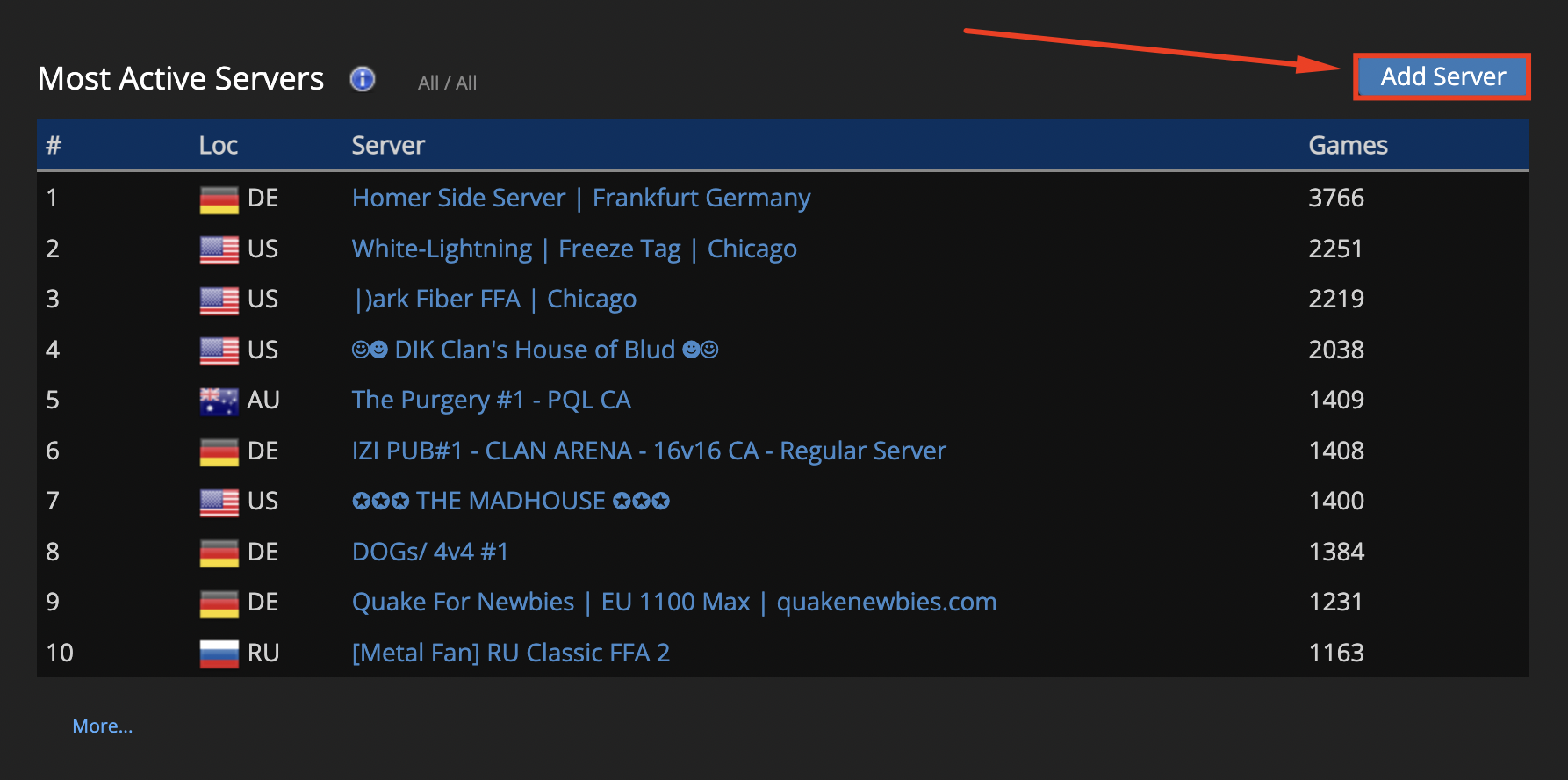
The Add Server button on the QLStats homepage, located next to the Most Active Servers section.
Go to qlstats.net. The Add Server link near the Most Active Servers section leads to four server administration panels:
You can use any panel that currently accepts new servers.
Adding your first server
Click Add Server and complete the registration form:
- Owner (IRC nickname) — the name displayed as the server owner in the administration panel. It does not affect statistics collection.
- ZMQ Stats Password — the value of zmq_stats_password configured on your server.
- Repeat Password — enter the same password again.
- Server Address — the public IPv4 address and ZMQ Stats port in IP:port format, for example 203.0.113.10:30003.
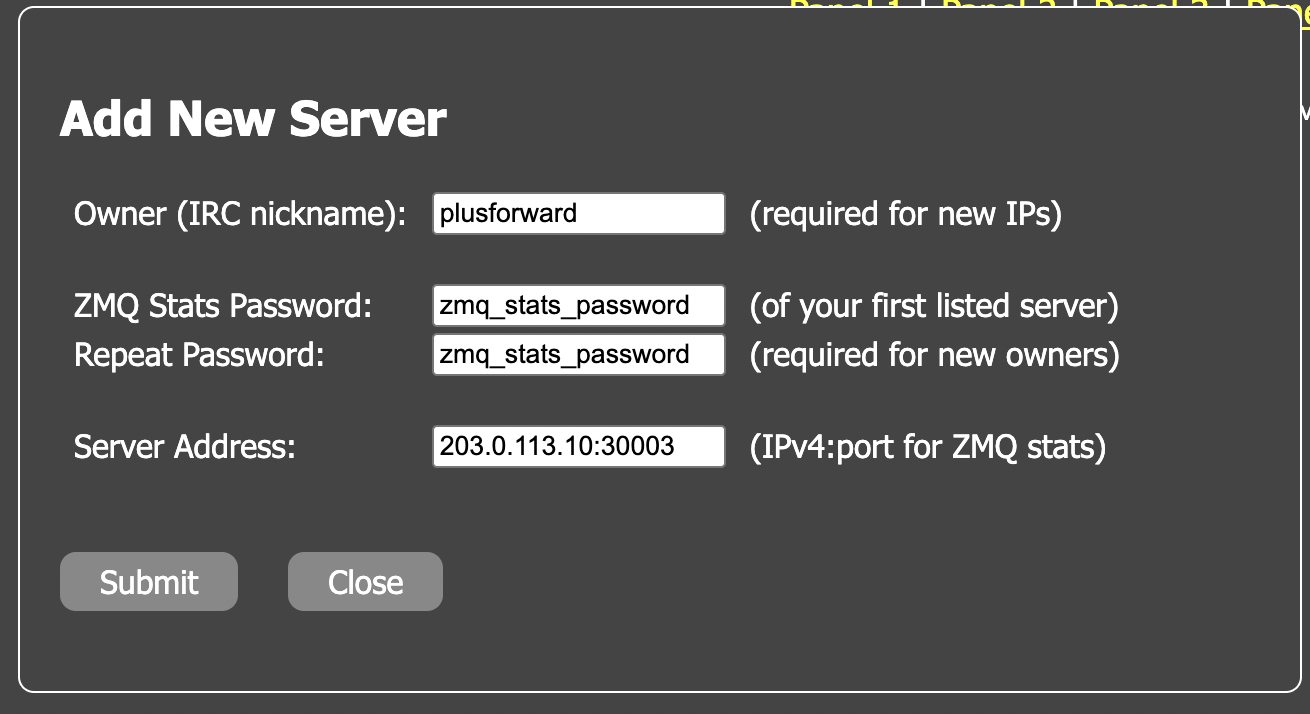
The Add New Server form in QLStats, showing the required fields for registering your first server.
The port entered under Server Address must be your zmq_stats_port, not necessarily the UDP game port. After clicking Submit, the server will appear in the administration panel and QLStats will attempt to connect to its statistics feed.
Adding another server on the same IP
If several Quake Live servers share the same public IP but use different ZMQ ports and passwords, the process is slightly less straightforward. When a new port is added to an existing IP entry, QLStats initially uses the password already associated with that entry, so the new port's own password must be saved separately afterwards.
For example:
Code:
Server 1: 203.0.113.10:30003
Password: PASSWORD_A
Server 2: 203.0.113.10:30004
Password: PASSWORD_B
- Find the first registered server and click + next to its port list.
- Enter the ZMQ password of the existing server — PASSWORD_A in this example — to confirm access to the entry.
- Add 203.0.113.10:30004 and save the changes.
- Once port 30004 appears in the list, click its port number.
- Enter PASSWORD_A under Current ZMQ Stats Password.
- Enter PASSWORD_B in both new-password fields.
- Click Submit.
If the second server's game port differs from its ZMQ Stats port, also fill in the Game Port field. If the values are identical, it can be left empty.
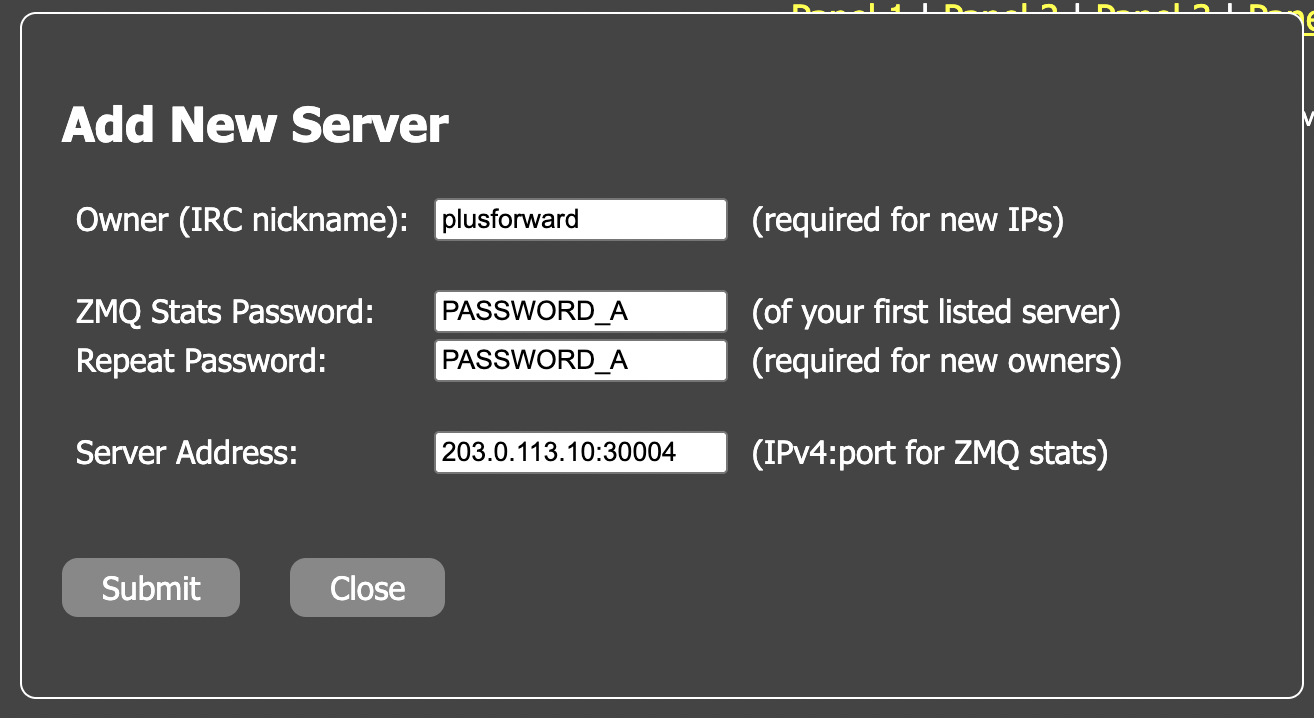
Adding another server under the same IP address in QLStats using the first server's ZMQ password.
|
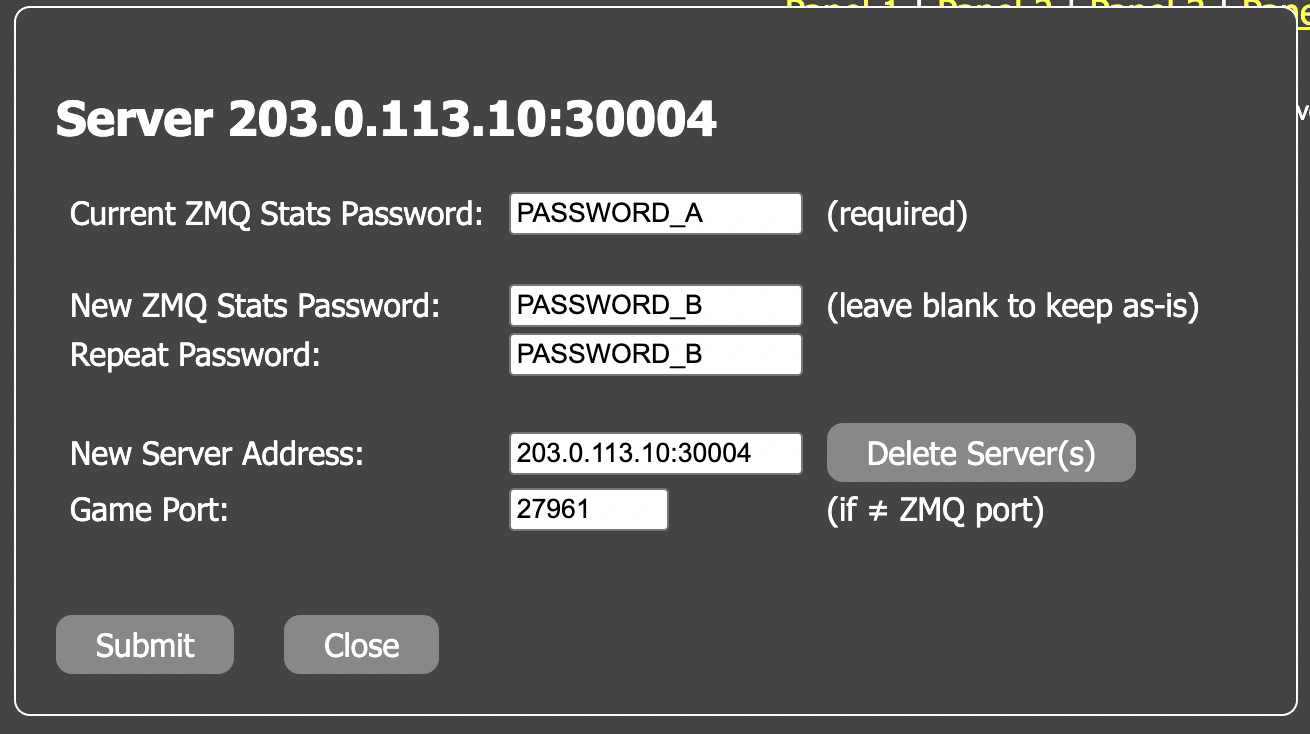
Setting the second server's own ZMQ password and specifying a separate game port in QLStats.
|
Checking the QLStats connection
QLStats displays a status for every registered port:
- Active — the server is active.
- Idle — the server is connected but is not currently sending active match events.
- Connecting — QLStats is attempting to establish a connection.
- Bad password — the stored ZMQ Stats password is incorrect.
- Can't connect — QLStats cannot reach the statistics feed.
QLStats also periodically removes inactive servers from its administration panels. On January 20, 2026, the site announced a cleanup of IP addresses that had not recorded a match during the previous 90 days. If at least one server on the same IP remains active, the other ports are currently kept in the panel as well.
How to connect a server to Slipgate
Open the Slipgate server registration page and sign in through Steam. Unlike QLStats, Slipgate provides a dedicated registration form with a built-in connection test.
Fill in the following fields:
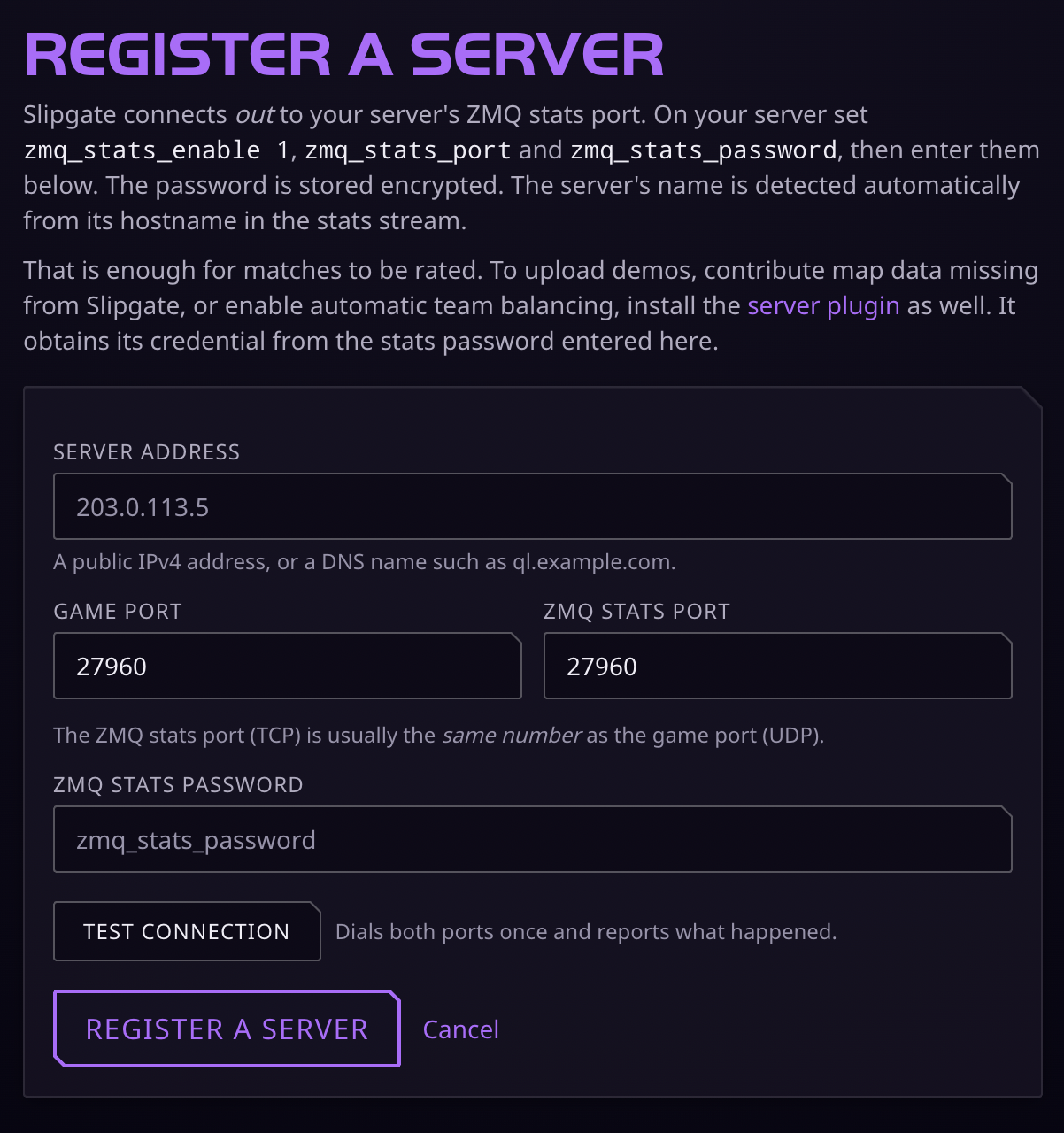
The server registration form on Slipgate, including the game port, ZMQ stats port, and connection password.
- Server Address — the public IPv4 address or DNS hostname, for example 203.0.113.10.
- Game Port — the UDP port used by players, for example 27960.
- ZMQ Stats Port — the TCP port configured in zmq_stats_port, for example 30003.
- ZMQ Stats Password — the password configured in zmq_stats_password.
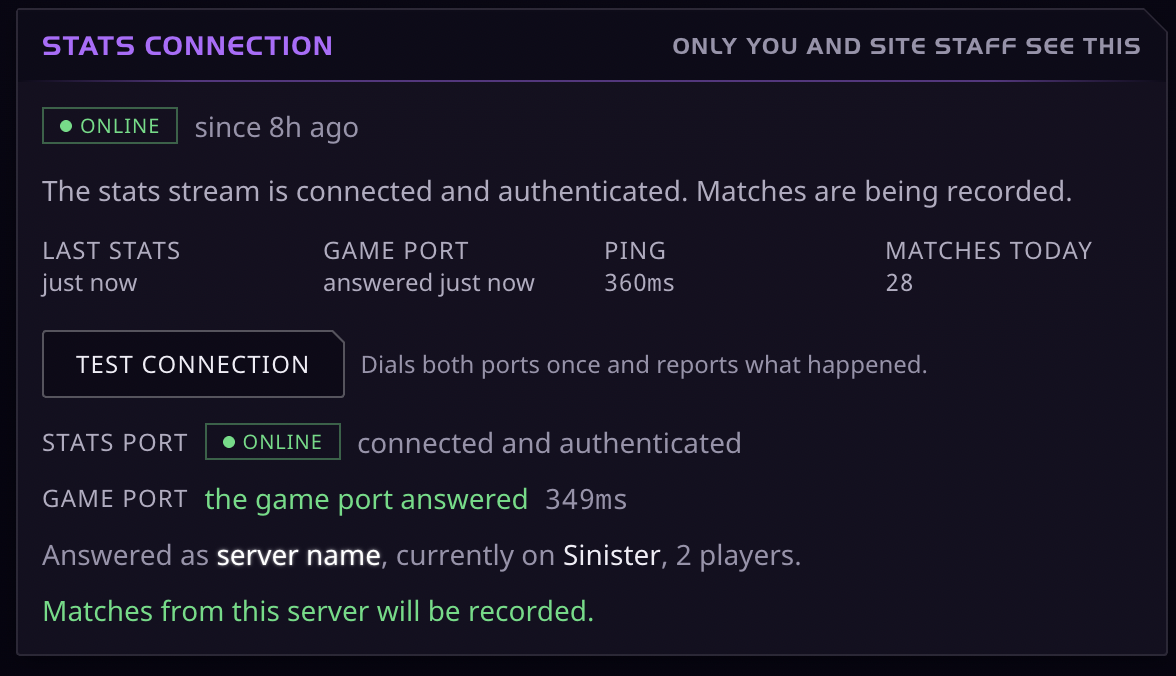
Slipgate confirming a successful connection to both the game and ZMQ stats ports, with match recording active.
Optional Slipgate plugin for minqlxtended
Basic statistics tracking does not require any additional plugins. Administrators running minqlxtended can, however, install the official Slipgate plugin, which can automatically upload match demos, provide additional map information, display ratings through in-game commands and balance teams using Slipgate ratings.
The plugin replaces several commands normally provided by balance.py, so running both at the same time is not recommended.
Can QLStats and Slipgate be used at the same time?
Yes. Both QLStats and Slipgate can independently connect to the same ZMQ Stats feed, so the same Quake Live server can be registered on both platforms using the same address, ZMQ port and password.
Their ratings may still differ because QLStats uses Glicko, while Slipgate uses OpenSkill. This means identical match results do not necessarily produce identical rating changes on the two services.
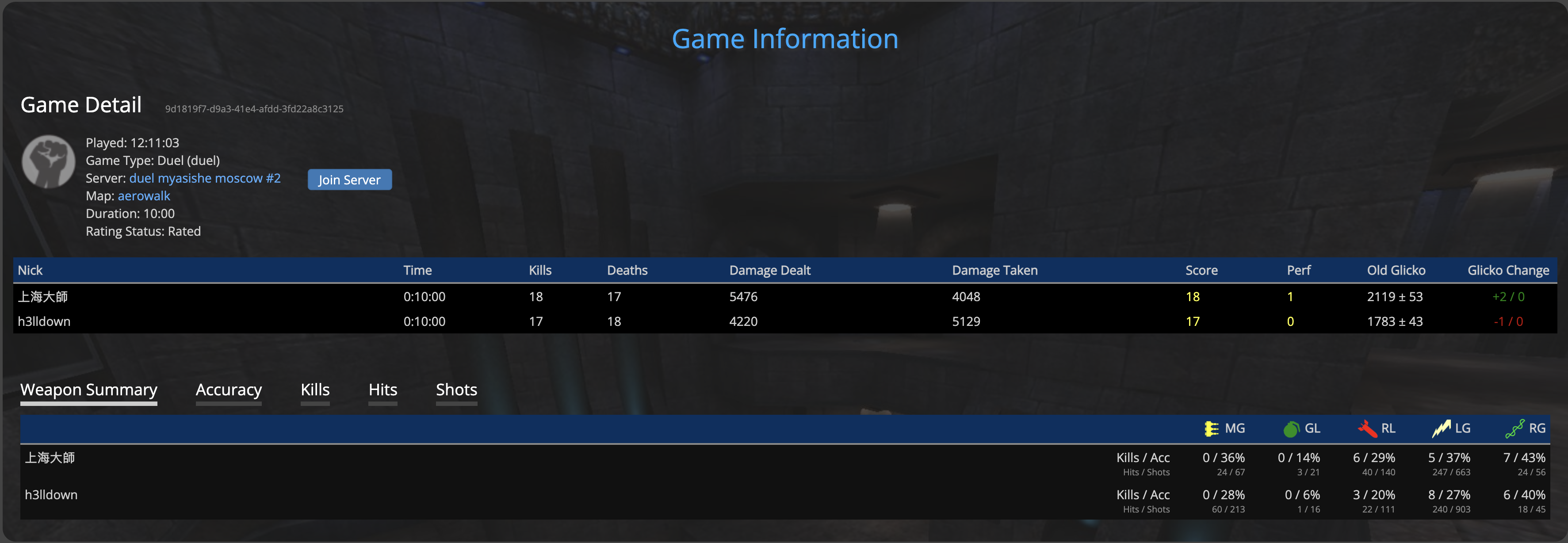
QLStats match report showing the final score, Glicko rating changes, and detailed weapon statistics.
|
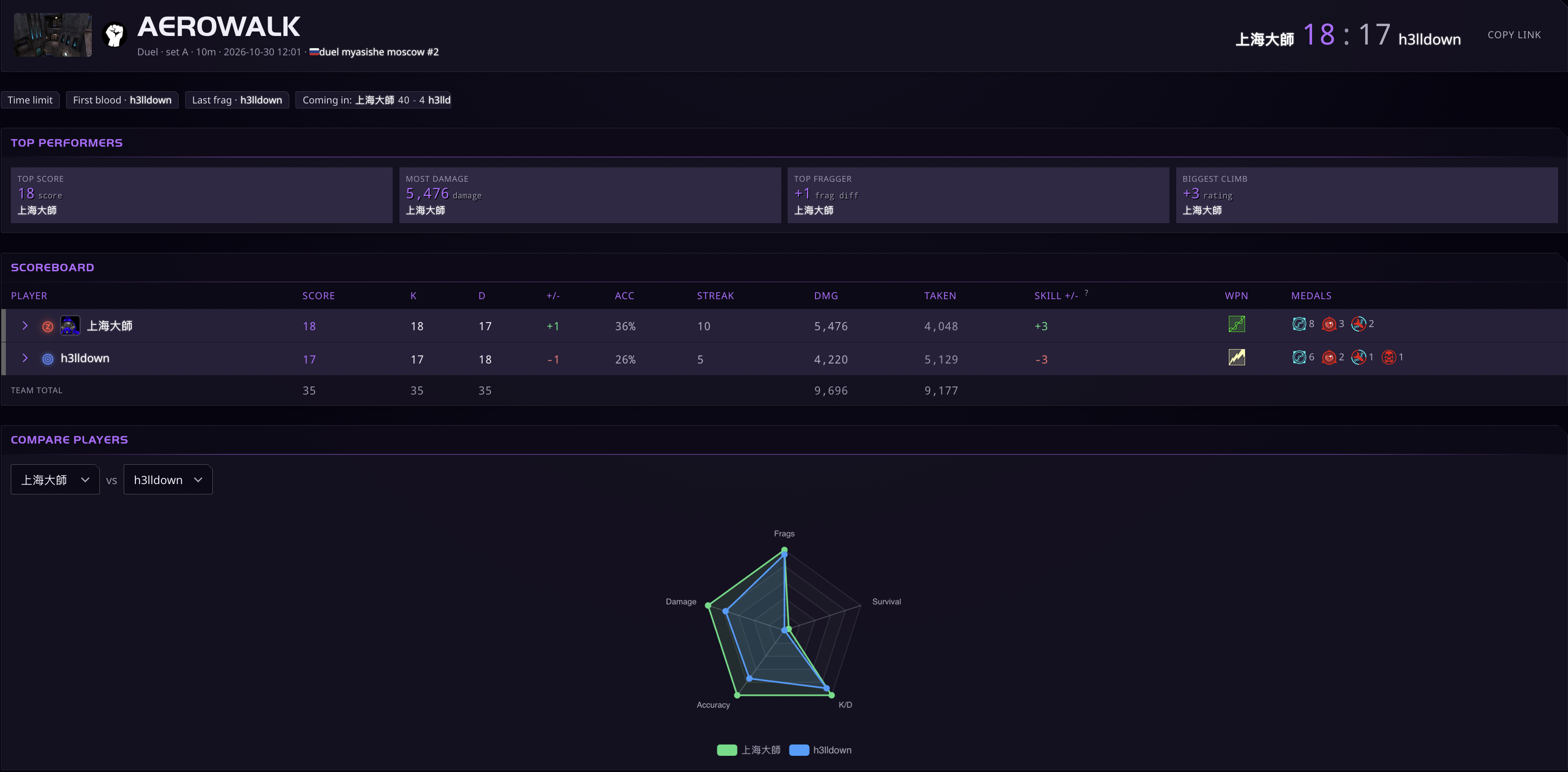
The same match on Slipgate, featuring performance highlights, a detailed scoreboard, and player comparisons.
|
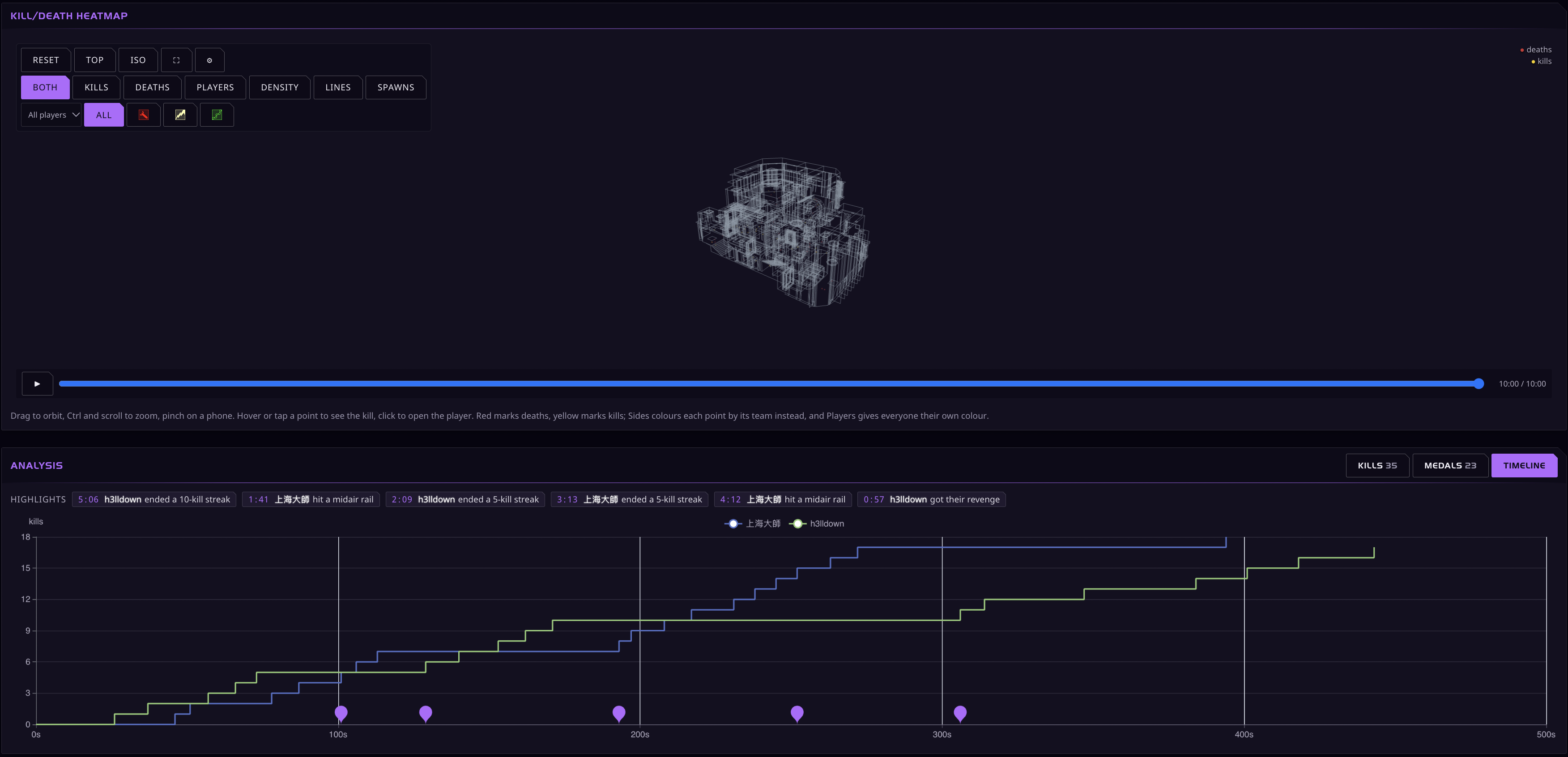
Slipgate's interactive 3D kill/death heatmap and match timeline, providing a more detailed breakdown of the same match.
|