How to Make Quake Live Look Black & White
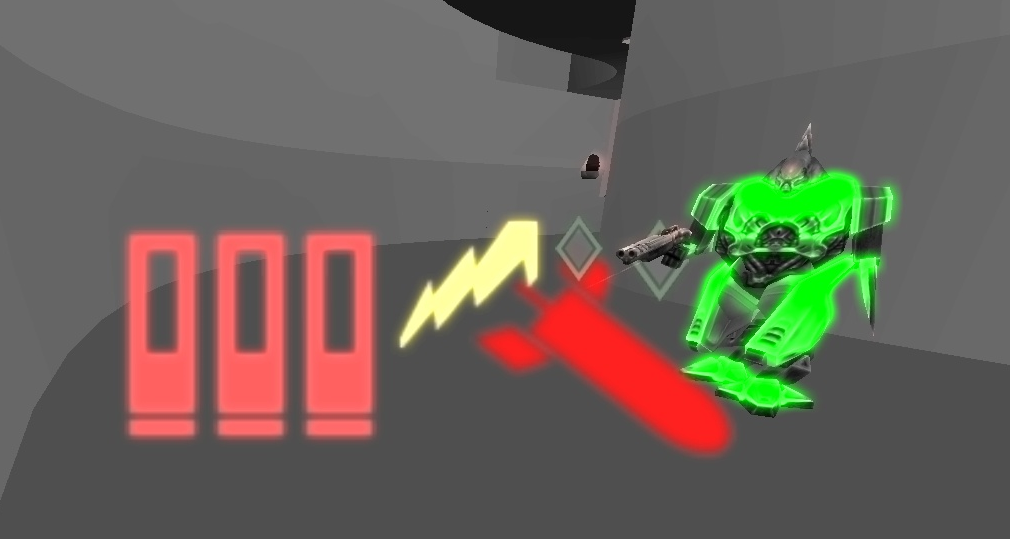
Some Quake III Arena engine forks include a greyscale option (often referenced as r_mapGreyScale). In Quake Live there isn’t a direct equivalent, but bloom/post-process cvars can be used to push the scene saturation down and get a near black-and-white look.
Enable post-process + bloom
- r_enablePostProcess 1 — enables post-processing (needed for bloom-related effects).
- r_enableBloom 1 — enables bloom (works with post-process enabled).
- vid_restart — restarts the renderer so the change applies cleanly.
Make the scene desaturated
The main “black & white” part is:- r_bloomSceneSaturation "0" — reduces scene saturation; higher values bring back color.
- r_bloomBlurRadius — bloom blur size/radius. Higher values make the bloom blur wider/stronger.
- r_bloomBrightThreshold — brightness threshold for what “blooms”; lower values make more of the scene trigger bloom.
- r_bloomIntensity — bloom brightness intensity; higher values make the glow brighter/stronger.
- r_bloomSaturation — saturation of the bloom effect itself (the glow).
- r_bloomSceneIntensity — brightness intensity applied to the non-bloomed scene; use it to make the base image darker/brighter without only boosting the glow.
Code:
seta r_enablePostProcess "1"
seta r_enableBloom "1"
vid_restart
seta r_bloomBlurRadius "1"
seta r_bloomBrightThreshold "0.3"
seta r_bloomIntensity "1.2"
seta r_bloomSaturation "1.25"
seta r_bloomSceneIntensity "0.8"
seta r_bloomSceneSaturation "0"
Optional: brighter enemy models
If you’re running a low-saturation / near black-and-white look, forcing a bright enemy model color can help opponents stand out more:Code:
seta cg_enemyHeadColor "0x00ff00ff"
seta cg_enemyLowerColor "0x00ff00ff"
seta cg_enemyUpperColor "0x00ff00ff"
Quake Live with post-process + bloom enabled